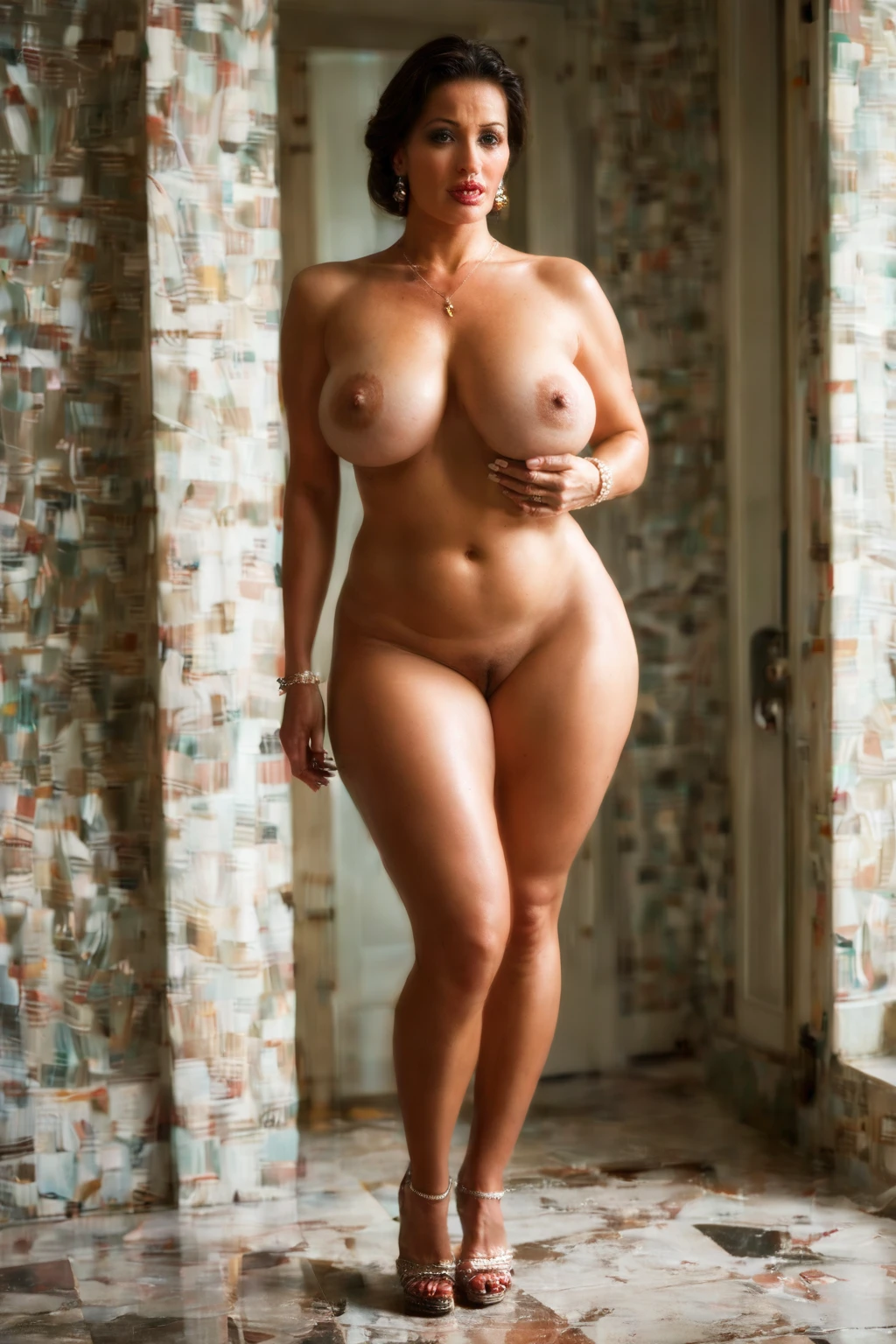

How to Generate Bimbo AI Images — Complete Guide
Some looks whisper. This one struts. The bimbo aesthetic reads from across the room before you can pick out a single detail — a silhouette turned up past natural, a pose that knows the camera is watching, an air of manufactured, unapologetic glamour. It is a look built to be noticed, and on AINudeGirls you reach it without touching a single word of prompt text. Pick the category and the platform assembles the prompt and renders the image for you. Nothing to write, nothing to tune.
Everything here works on the bimbo category page and in the generator.
What the Bimbo Look Captures
Here is the shape of it, in one place. A bimbo render leads with full, plump lips and curves enhanced well past what a natural figure would carry. The styling leans openly into plastic-surgery enhancement — fake tits that push the proportions further, overdone glamour in the wardrobe and staging, heavy makeup, and stylized poses that play the artifice for all it is worth. High-contrast lighting and glam settings round it out. The whole frame commits to that constructed, camera-ready ideal rather than softening it.
Real Outputs First: Bimbo Examples
bimbo example 1
bimbo example 2
bimbo example 3
bimbo example 4
bimbo example 5
bimbo example 6
bimbo example 7
bimbo example 8
bimbo example 9
bimbo example 10
bimbo example 11
bimbo example 12
bimbo example 13
bimbo example 14
bimbo example 15
bimbo example 16
There are 29 in total over in the bimbo gallery, and if you want photoreal-only frames you can jump to the realistic bimbo style.
How to Generate Bimbo Images, Step by Step
1. Open the Generate page on AINudeGirls, choose the "bimbo" category, and start generating.
2. The platform writes the prompt from your category pick and hands back a WebP image at 1312x1968.
3. The finished render drops straight into your gallery.
The Example Prompt Behind It
Curious what the platform feeds the model on your behalf? This is the modifier clause that drives the category:
```text
bimbo aesthetic with full plump lips and enhanced curves, glamorous
```
Combining Bimbo with Other Picks
Bimbo belongs to the body_size group, and that group only lets one choice through. If you stack it with another body type from the same group, the one you picked first is the one that shows up in the render — the other simply drops out. So your bimbo pick holds as long as it is the body size you chose first.
How Bimbo Differs from Its Neighbors
A quick side-by-side, since these body categories tend to get shuffled together:
Category What it actually is
--- ---
bimbo (this guide) bimbo aesthetic with full plump lips and enhanced curves, glamorous
athletic athletic toned fit body with defined muscles
bbw BBW plus-size figure with full curves, voluptuous heavy body
chubby chubby plump body with soft curves and full belly
A Few Practical Notes
Sticking to one AI model helps keep the same face recurring across a set. If you would rather explore, batch a handful of renders and keep the ones that land — and remember the body_size group is there to rotate through other figures when you want a different silhouette entirely.
Common Misses
Almost every rejected result comes down to the same thing: the render skips part of that defining look described up top. The platform holds the category to the full combination, so a frame that lands only halfway there gets turned away. If a generation comes back off, that missing piece is usually why.
Bimbo Questions, Answered
Q: Why do the examples look so heavily done-up and artificial?
That is the point of the category, not a glitch. The bimbo aesthetic is built around openly enhanced, overdone glamour, so the platform pushes the styling in that direction on purpose.
Q: Is a male partner in the default bimbo scene?
No — the default scene is solo. If you want one, flip on the male-partner toggle in the generator; it adds a partner without changing the core look.
Q: What if I pick bimbo alongside another body type?
Only your first body-size choice makes it into the image. Pick bimbo first and that is what renders; the second body type is ignored.
Q: Can I get a strictly photoreal version?
Yes. Switch to the realistic bimbo style for photoreal-only frames.
Keep Reading
The nearest body categories each have their own walkthrough:
You will find the rest of the category guides on the blog index. When you are ready, open the AI Bimbo Generator and make your first one.