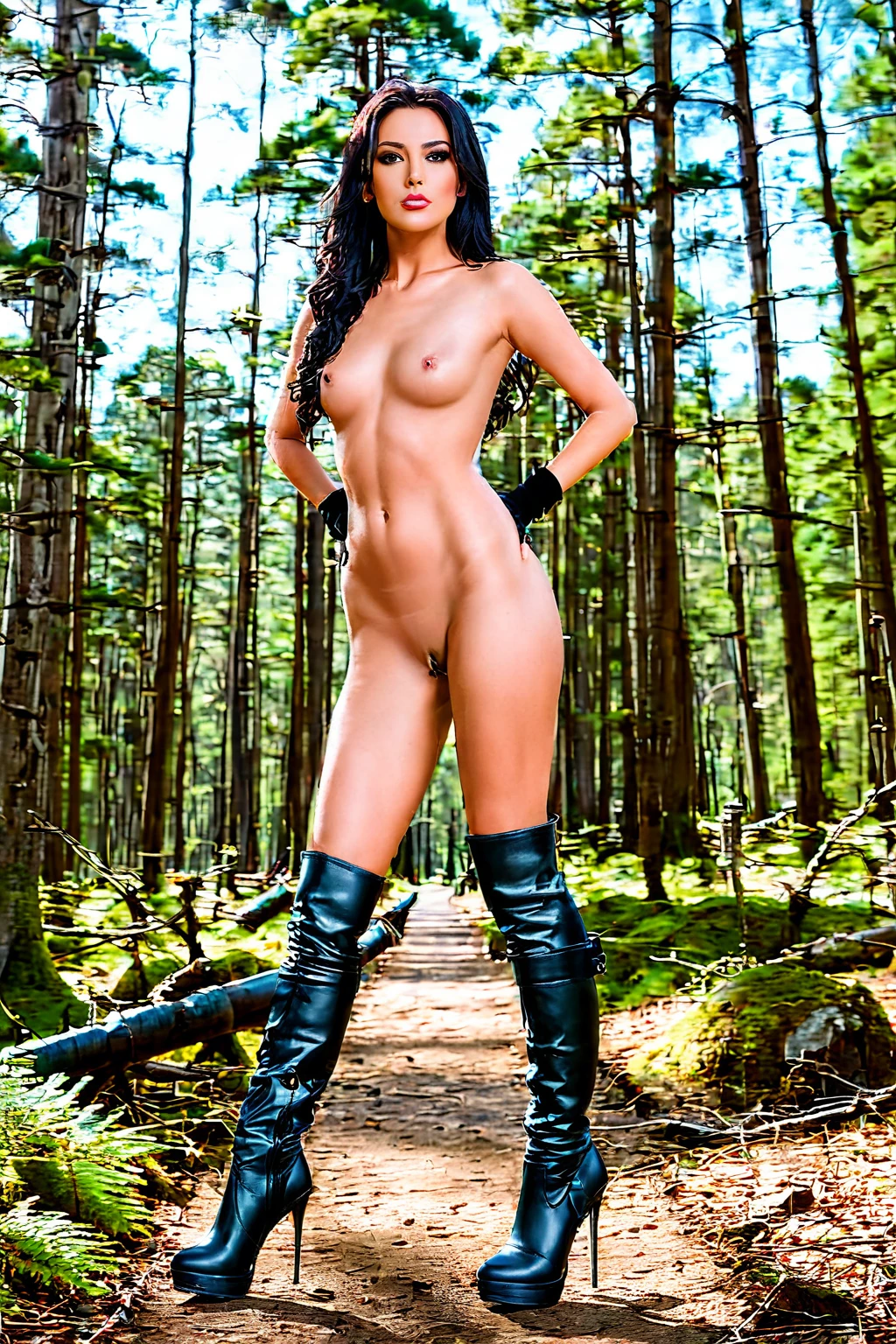

How to Generate Boots AI Images — Complete Guide
Leather that catches the light, a shaft that runs up the calf, a heel that sets the whole posture — boots are one of those garments the camera loves. Grain, sheen, the seam where the material meets skin: there's a lot of texture packed into the frame, and that's exactly what makes the category rewarding to generate. You never write the prompt for it yourself. Pick the look, and the platform assembles the rest.
Everything here works from the boots category page or straight from the generator.
What the Boots Category Captures
The boots category puts the subject in tall boots, usually thigh-high. That height is the whole point of the category and it has to read clearly in the frame — short footwear doesn't qualify. If the boots aren't visibly tall or thigh-high, the image won't be counted as boots. Every result is built to hit that mark.
Real Outputs First
boots example 1
boots example 2
boots example 3
boots example 4
boots example 5
boots example 6
boots example 7
boots example 8
boots example 9
boots example 10
boots example 11
boots example 12
boots example 13
boots example 14
boots example 15
boots example 16
There are 30 in total over in the boots gallery. If you want photoreal results only, switch to the realistic boots style.
Generating a Set, Step by Step
1. Open the Generate page, choose boots, and start. Finished images land in your gallery — each one a WebP at 1312x1968.
2. The prompt is written for you from the categories you've selected. Nothing to type.
3. Let the batch run, then compare. Generating several at once from the same setup gives you more to choose from.
An Example Prompt to Try
If you're curious what the platform builds for you, this is the kind of modifier clause the boots category adds:
```text
wearing knee-high leather boots with stiletto heels
```
Framing and Wardrobe
You can shoot this one tight or wide. Crop down to the legs and footwear when the boots are the story, or pull back for a fuller scene — either works, and a simple background keeps the eye where you want it.
Wardrobe is where you set the tone. Skirts and dresses that leave the legs bare pair naturally with tall boots; so do trousers tucked into the shaft. Lighting shifts the register too — bright studio setups read cleaner and more editorial, while lower light leans intimate. From there the mood is yours, whether that's a polished fashion-editorial frame or a looser lifestyle snapshot.
Terms like thigh high boots and knee boots steer the height of the footwear, so lean on them when you want the shaft to reach the knee or above.
Combining Boots with Other Picks
Boots sits in the Footwear family, which overlaps with the Pants family — so if you select a boots option and a pants option together, only one of them makes it into the scene. Stick to a single lower-body pick to avoid the guesswork.
How Boots Differs from Its Neighbors
A few categories sit close to this one; here's how they actually differ:
Category What it actually is
--- ---
boots (this guide) wearing tall boots, often thigh-high
stockings thigh-high stockings with garter belt
professional in professional business attire, office-worker styling
high heels wearing high heels
Getting Sharper Results
- Reach for precise footwear terms — boots, thigh high boots, knee boots — rather than vague ones, so the AI lands on the right style.
- Stick to one AI model; it helps hold a consistent face across a set.
- Run a batch instead of one-offs. More candidates, better odds of a keeper.
- Rotate the variants — a run of thigh high boots, then a run of knee boots — to see the range the category covers.
Common Mistakes
The one hard requirement is that the boots have to show. If the defining height above isn't visible in the frame, the image gets rejected and won't register as boots. Everything else is flexible; that isn't.
Vague prompts are the usual culprit. Precise footwear descriptors keep the render on-target instead of drifting into something you didn't ask for.
Boots, Answered
My boots keep coming out ankle-height. How do I force the tall look?
Lean on the height keywords — thigh high boots and knee boots both push the shaft up toward the knee or higher, which is what the category is after.
Can I pair boots with a particular outfit?
Yes — skirts, dresses, or trousers tucked into the shaft all work. Just keep to one lower-body pick, since a boots choice and a pants choice can't both appear.
Can I zoom in on just the legs and footwear?
You can. Crop tight on the legs when the boots are the focus, or frame wider for a full scene — both are fair game.
How do I add a male partner?
None appears by default. Flip the male-partner toggle in the generator and one gets added to the scene — that toggle is the only way to include him.
Keep Reading
If boots is your lane, these neighbors are worth a look too:
- How to generate stockings AI images
- How to generate professional AI images
- How to generate high heels AI images
The full set is on the blog index.
Wrapping Up
Pick your boots look and let the generator handle the rest — start from the boots category page whenever you're ready.