
How to Generate Brunette AI Images — Complete Guide
Dark hair reads before anything else in the frame. It draws the eye down a silhouette, softens a jawline, throws a warm shadow across bare shoulders. That's the visual you're reaching for here, and on AINudeGirls you get to it by picking a category rather than describing it. Choose brunette and the platform assembles the prompt for you — you never type or edit a word of it. Every result stays faithful to the same look because the same rule is baked in each time.
For background on the subject itself, see Brown hair on Wikipedia.
Curious what that produces? The brunette gallery is the honest preview. When you're ready to make your own, open the generator.
What the Brunette Category Captures
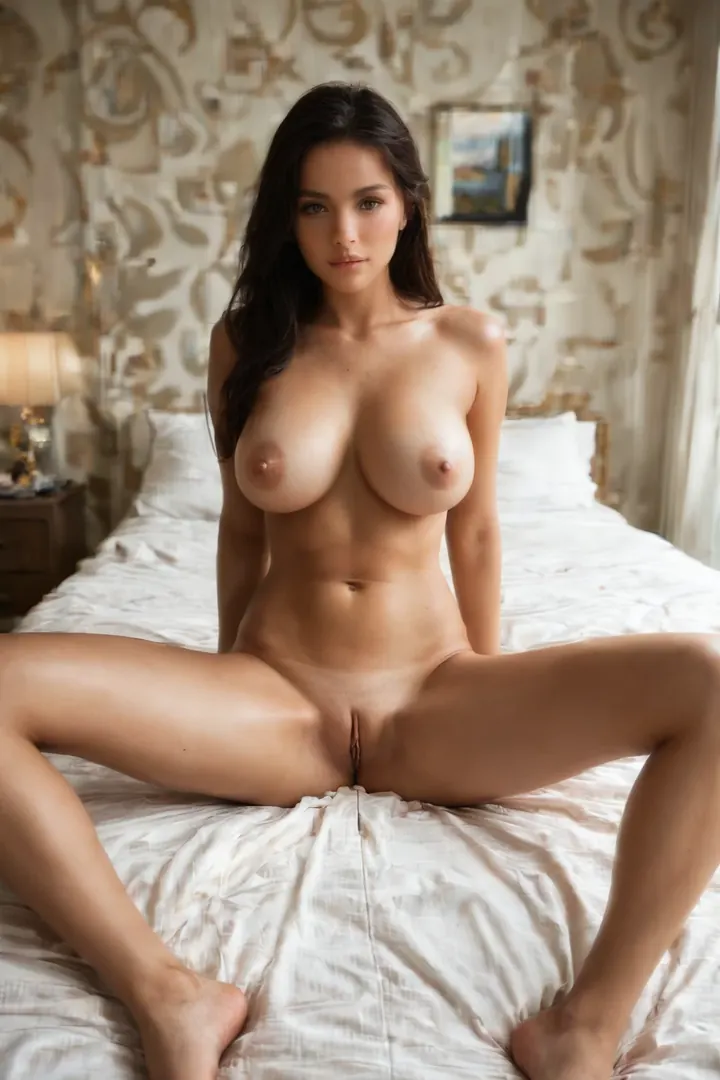
One trait defines this category: long, dark brunette hair. Every image in it has to show that clearly, and the platform checks for it before a result counts. Lighter shades, other colors, cropped styles — none of them qualify. That single check is what keeps the category coherent from one image to the next.
From Category Pick to Finished Image
1. Open the Generate page, choose brunette, and start. Finished images drop into your gallery as WebP files at 1312x1968.
2. The prompt is built for you. There's nothing to type, and settings like resolution, steps, and negative prompts stay out of your hands entirely.
3. By default the scene is a woman on her own. If you'd rather have a man in the frame, flip on the male-partner toggle in the generator before you start.
Gallery Proof: Brunette in Practice
brunette example 1
brunette example 2
brunette example 3
brunette example 4
brunette example 5
brunette example 6
brunette example 7
brunette example 8
brunette example 9
brunette example 10
brunette example 11
brunette example 12
brunette example 13
brunette example 14
brunette example 15
brunette example 16
That's a sampling — the full set of 30 sits in the brunette gallery. Prefer strictly photoreal frames? The realistic brunette style narrows it to those.
Brunette Next to Its Sister Categories
Brunette gets confused with a few adjacent hair categories. Here's the line between them:
Category What it actually is
--- ---
brunette (this guide) long dark brunette hair
blonde long platinum blonde hair
silver hair long DYED silver hair as a fashion color on a young adult woman (not natural grey, not elderly)
black hair glossy black hair, long black hair, jet black hair
Styling and Scene Ideas for Brunette
The hair is the anchor, so the rest of the frame gets to play around it. Results range across loose flowing strands, sleek straight lengths, and braids. Wardrobe is where you can push contrast — earth tones sit warm against the color, black reads sultry, brighter shades pop. Mood swings just as wide, from a close, intimate quiet to something windswept and kinetic. Because that defining trait doubles as a filter, blonde and red never wander into the set. You get range without losing the through-line.
Combining Brunette With Other Options
Brunette belongs to the hair-color group, which is a one-at-a-time choice. The neighbors in that group are black-hair, blonde, blue-hair, green-hair, pink-hair, and purple-hair. Select brunette and the others are simply off the table for that image. If you happen to tick two hair colors, the one you picked first is the one that shows up — a single hair color per render, always.
Example Prompt Details
Every brunette render carries the same modifier clause. This is the exact text the platform folds in for you:
Modifier clause:
```text
long dark brunette hair
```
Getting Better Brunette Results
- Lean on the precise category keywords — brunette, brown hair, dark brown hair — rather than vague descriptions.
- Rotate through those brunette, brown hair, and dark brown hair variants; each pulls a slightly different look.
- Stick to one AI model if you want your results to stay consistent across a set.
- Generate in batches and keep the strongest frames.
What to Watch Out For
The usual miss is the hair landing too light or too short, drifting off that defining look. The platform inserts the modifier clause into every prompt and rejects any result that wanders from it, so a frame can look great in every other respect and still get turned away for missing the one trait that names the category. There's nothing to correct on your end — you don't touch the text — but it's worth knowing why the occasional result gets held back.
FAQ
Why do my brunette results sometimes come out too light?
That's a result drifting off the defining look. When the hair reads too light or too short, the platform rejects it rather than serving it. You don't fix this manually — the clause is inserted for you and the check runs on its own.
Do I need to write or tweak any prompt text?
No. The platform composes the whole prompt, including the modifier clause, and you can't edit prompt text, resolution, steps, or negatives.
Can I combine brunette with another hair color?
Not in the same image. Hair color is a one-at-a-time choice, so brunette locks out blonde, black, and the rest for that render; if two are selected, the first one wins.
How are the generated brunette AI images handled regarding anonymity?
The platform does not state a specific anonymity policy for these images.
Further Reading
The closest neighboring categories each have their own walkthrough:
- How to generate blonde AI images
- How to generate silver hair AI images
- How to generate black hair AI images
For the rest, browse the blog index — and when you want to see the color for yourself, the generator is one pick away.