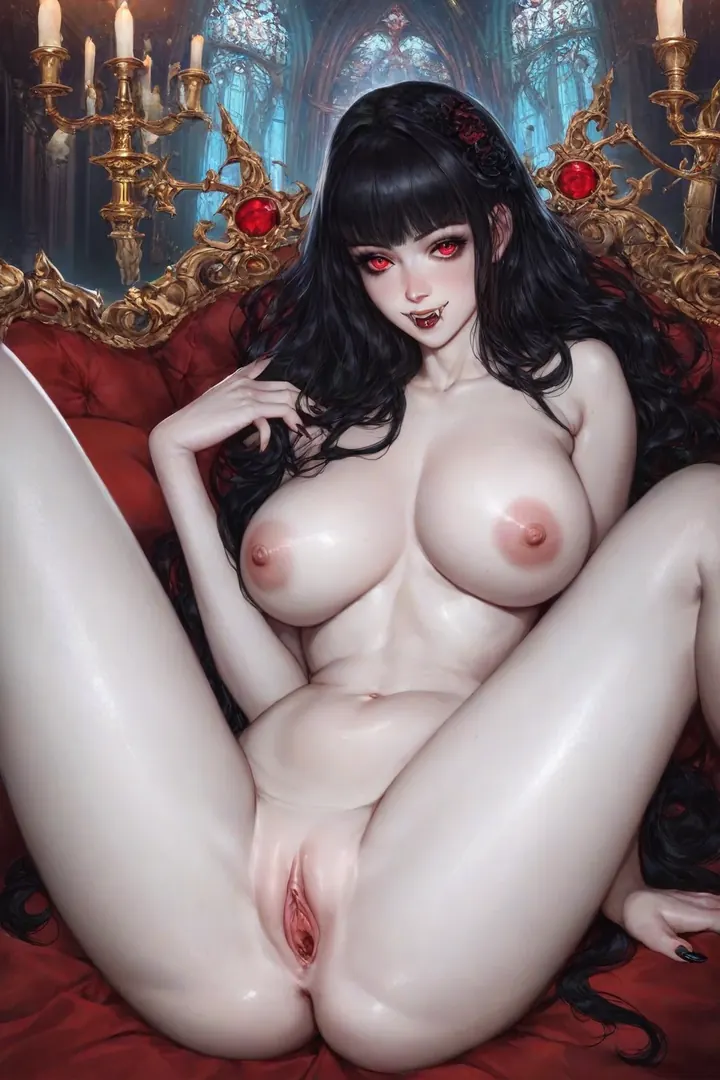

How to Generate Vampire AI Images — Complete Guide
Torn lace over skin the colour of candle wax. A fang catching the light. Red velvet eating every bit of colour out of the background. That is the vampire category — the older, hungrier register of the fantasy, aimed at anyone who wants their AI girl to look like she has owned the castle for a few centuries rather than rented a goth outfit for the weekend.
Ready to try it? Open the AI vampire generator. For background on the subject itself, see Vampire on Wikipedia.
You never type any of this. Select vampire in the generator and the wardrobe, the lighting and the room come with it. What follows is what the category actually puts in frame, what to pair it with, and the handful of things that quietly wreck an otherwise good render.
What You Get With Vampire
Two elements are non-negotiable: pale, moonlit skin and visible fangs. Everything else in the category is built around them — red or amber eyes, long dark hair, candlelit stone interiors, velvet and blood-red accents, and body language that reads predatory rather than passive, a slow knowing smile instead of a shy one. Miss either of those two anchors and the image is a gothic image, not a vampire one. The category page is the fastest way to see that contract enforced across a run.
Around that defining look there is real range, and most of it lives in fabric and light. Wardrobe runs dark and tactile: torn lace, boned corsetry, an open robe, or nothing at all — chosen to sit against the complexion rather than compete with it. Lighting carries the mood. Cold moonlight through a window, warm flickering candlelight, the flat dark of a crypt: all three read as vampire. Bright, even daylight does not.
Blood is a legitimate part of the vocabulary here, and it works best small — a drop at the corner of the mouth, a smear across the throat, pooling near a bite mark. Settings do the rest of the storytelling. A coffin, a candelabra-lit stone hall, a velvet-draped chamber, a crumbling castle interior. What the category will not do is drift. It does not soften into generic dark fantasy or witch imagery, and it will not quietly hand you a sun-kissed complexion because the rest of the frame looked good that way.
Getting a Vampire Image Out
1. Open the Generate page, pick the vampire category, and start the generation.
2. Finished images land in your gallery as WebP files at 1312x1968 — big enough for full-screen, light enough to scroll through.
3. A single image costs 15 credits. A set of five is 68 and a set of ten is 120, which is the better trade in this category: pose, lighting and blood placement all move between results, and choosing the strongest of ten beats chasing one perfect render.
4. Solo scenes are the baseline: the male-partner control sits off until you switch it on yourself, before you start the generation.
Five finished examples, straight from the category:
vampire example 1
vampire example 2
vampire example 3
vampire example 4
vampire example 5
If you only want the photoreal end of it, the realistic cut of the category drops everything stylised.
Prompts and Settings That Work
Here is the tag vocabulary the category carries for a full vampire scene. You are not meant to retype it — it is printed so you can see what the selection is actually asking for:
```text
vampire, pale skin, fangs, red eyes, long dark hair, curvy body, large breasts, gothic castle interior, candelabra, red velvet, fantasy setting, lounging on a coffin, legs spread, exposed pussy, seductive predatory smile, soft bright moonlight, soft even light, looking at viewer, completely nude, gothic atmosphere
```
Read it in three layers. Identity comes first (`vampire, pale skin, fangs, red eyes`) and settles who she is. Setting follows (`gothic castle interior, candelabra, red velvet`, the coffin) and settles where. Mood closes it out (`seductive predatory smile, soft bright moonlight`) and tells the frame how to feel. That split is why the category holds together: strip the identity layer and you get a costume drama, strip the setting layer and you get a dental close-up.
When vampire is combined with another category rather than run on its own, it contributes a much shorter clause:
```text
with vampire fangs and pale skin, gothic blood aesthetic
```
That clause is the whole of vampire's input into a combined scene. The other category supplies the pose, the framing and the act; vampire supplies the fangs, the complexion and the blood-tinged styling laid over it.
Easily Confused With
The categories vampire sits closest to on the selection screen, and what each one is actually asking for:
Category What it actually is
--- ---
vampire (this guide) as a vampire, pale skin and fangs, gothic seductive
lingerie delicate black lace lingerie with garters
cop in a sexy police uniform with cap and belt
nurse in a sexy nurse uniform, white outfit with a red cross
What to Select Alongside
Vampire dresses the model, which is why it collides with other wardrobe picks — angel, bikini and bodysuit are the usual three. Select two of them and only one actually shows up on screen, and angel is the one that wins that tie against vampire. If a combined selection comes back looking nothing like what you chose, a second outfit category is almost always the reason.
Where it does combine cleanly is with scene and act categories, because those govern the body and the framing while vampire governs the look. Pick vampire alongside breeding, for example, and the scene it composes into is:
```text
POV from above a young woman alone lying on her back with her legs spread wide, her hands above her head, mouth open in intense pleasure, looking up at the camera, full body visible, bright soft lighting, female alone in frame, no other people
```
The pose, the camera angle and the lighting all come from breeding; the fangs, the pale complexion and the gothic blood styling are what vampire lays over the top. Bukkake pairs the same way — a close, kneeling, face-forward composition that keeps the mouth and fangs squarely in frame, which is exactly where this category wants them.
Avoidable Mistakes
Skin tone is the first thing to go wrong. Warm or bright lighting washes out the contrast the whole aesthetic depends on, and a complexion that reads as ordinary takes the image with it. Cheerful, evenly lit scenes are the near-miss version of the same problem — this category wants shadow and moonlight, not flat daylight.
The outright dealbreaker is missing fangs. No fangs, no vampire image, however gothic the rest of the frame looks. That usually traces back to framing rather than styling: a face turned away, a mouth lost in shadow, a crop that ends above the jaw. Keep the face and mouth clearly in view and the failure rate drops sharply. Selecting a second wardrobe category is the other quiet spoiler, for the reason covered above.
Reader Questions
Do I have to add the castle, candles and velvet separately?
No. Setting is part of the category, not an extra — the gothic stone interiors, candelabra and red velvet come bundled with the fangs and the pale skin.
Is blood included, or do I need to ask for it?
It is included. Blood is a normal supporting detail here — a drop at the mouth, a smear at the throat, a mark from a bite — and it turns up as part of the category's own styling.
Why do my results look goth rather than vampire?
Almost always fangs. They are the one identity marker the category cannot do without, so if the mouth is shadowed, angled away or cropped, the image reads as a gothic portrait instead.
Can I get vampire images without the stylised look?
Yes — the lifelike cut is the same category filtered down to realistic renders.
Where to Go Next
The three categories nearest to this one, each with its own guide:
Every category guide is indexed on the blog. If you would rather just see it work, pick vampire, run a set of five, and see which one of the five has the best light on the fangs.